
Whiteout Survival on PC
You can play Whiteout Survival on a Windows PC through Google Play Games on PC, the route Century Games links to from its own game page. It needs Windows 10 or newer, a four-core processor, 8 GB of memory and space on an SSD. The game is not on Steam, and the developer has no separate Windows app of its own. Your phone city carries over once the account is bound. Checked in November 2026.
PC Download for Windows
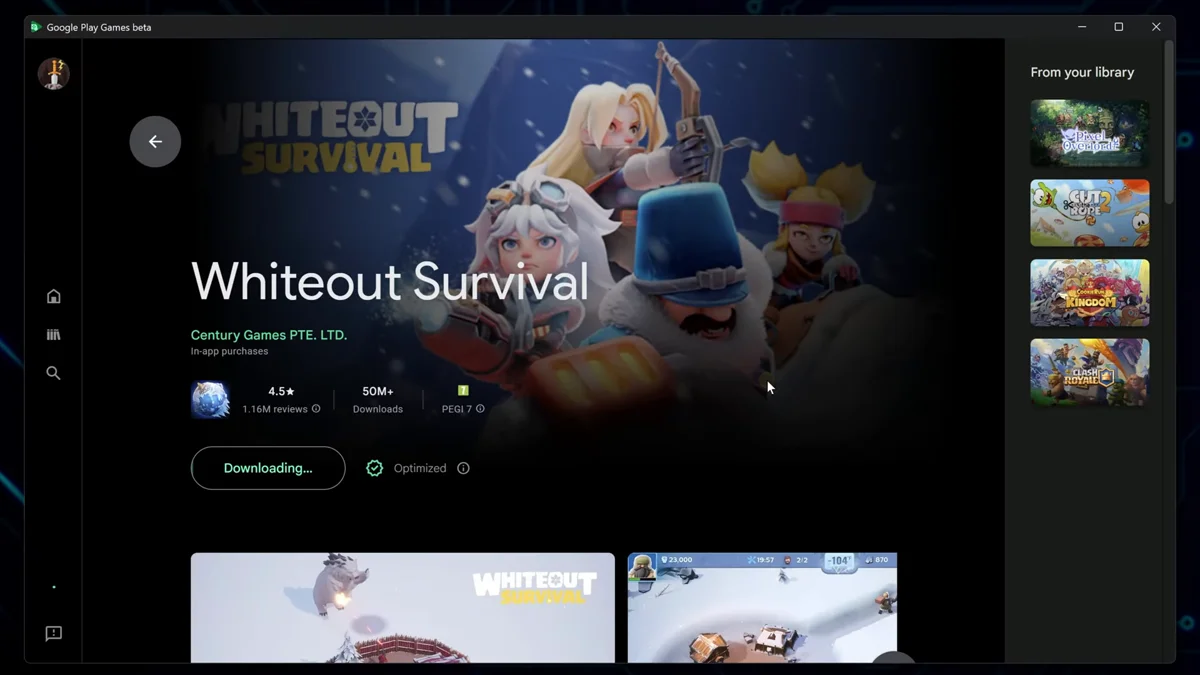
The official PC version is the Android game running in Google Play Games on PC, a Windows app made by Google. Century Games sends Windows players to the Google Play store page for PC, which installs the game through that app.
- Download and install Google Play Games on PC from Google.
- Sign in with your Google account.
- Find Whiteout Survival in the store; the listing should name Century Games as the publisher.
- Click Install, then start the game and let it finish its own download.
- Sign in with your bound game account to load your city.
Google Play Games is offered only in supported countries and regions, and your Google account also has to be eligible. If the store does not show the game, the problem is usually the region of the account, not the PC.
PC Requirements
These are the minimum requirements of Google Play Games on PC. They apply to every game it runs, including Whiteout Survival.
| Part | Minimum |
|---|---|
| Operating system | Windows 10 version 2004 or newer |
| Processor | 4 physical cores |
| Memory | 8 GB RAM |
| Storage | 10 GB free on an SSD |
| Graphics | Intel UHD Graphics 630 or comparable |
| Account | Windows administrator account |
| Hardware virtualization | Turned on |
Virtualization is the step people miss most. It is a setting in the BIOS or UEFI of the computer, often called Intel VT-x or AMD-V, and Google Play Games lists it as required.
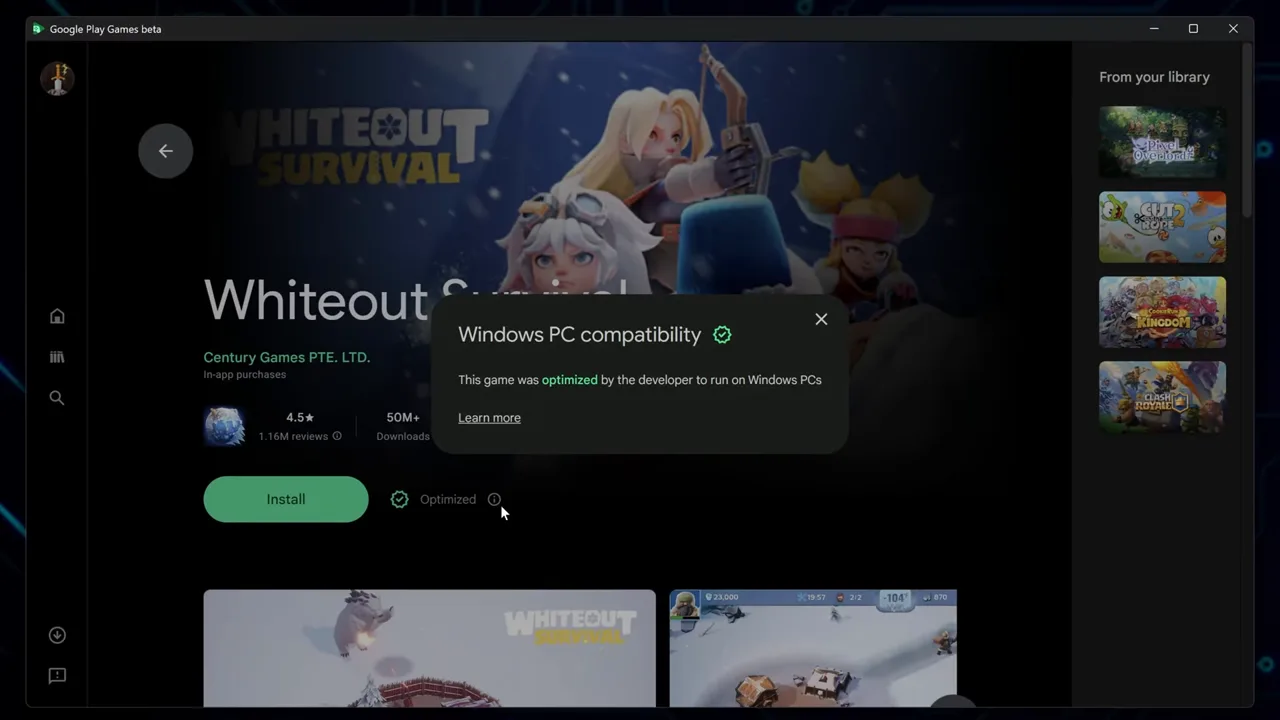
The video installs Google Play Games on a Windows PC, finds Whiteout Survival in its store with the Windows PC compatibility badge and starts the game without an emulator.
Steam and the PC Version
Whiteout Survival has no Steam release. A Steam store search in November 2026 returned no listing for it, and Century Games does not link to Steam from its game page. The only official PC version is the one in Google Play Games.
Emulators and Mac
Android emulators are the other route, and guides mention BlueStacks and LDPlayer. They work the same way: install the emulator, sign in to Google Play inside it and install the game. BlueStacks lists at least 4 GB of memory and 10 GB of disk. Start with the default settings and raise the CPU or memory allocation only if the game stutters.
On a Mac, skip the emulator. A Mac with Apple silicon can install the App Store version directly, as long as it has macOS 11.0 and an M1 or later chip. The download page lists every official store link.
Controls and Cross-Progress
The PC version plays with a keyboard and mouse. Google Play Games has a Controls Editor for games that are not optimized, and optimized games use their own Game Controls settings, where you can change the key for each action.
Progress is shared through the game account, not through the device. Bind the city to your Google Play, Apple, Facebook or Game Center login on your phone, then sign in with the same account on the PC.
Frequently Asked Questions
Is Whiteout Survival on Steam?
No. A search of the Steam store in November 2026 returned no Whiteout Survival product, and the developer points Windows players to Google Play Games instead. Treat any Steam page or download that claims to be the game with suspicion, since it does not come from Century Games.
Can I play Whiteout Survival on Windows 10?
Yes, from Windows 10 version 2004 onward. Google Play Games on PC also asks for a processor with 4 physical cores, 8 GB of memory, 10 GB free on an SSD, Intel UHD Graphics 630 or a similar card, an administrator account and hardware virtualization turned on.
Do I need an emulator to play on PC?
No. Google Play Games on PC is the official way and needs no emulator. Some players use BlueStacks or LDPlayer instead, and the BlueStacks page asks for at least 4 GB of memory and 10 GB of disk space. Either way, you sign in with the same bound account as on your phone.
Can I play on PC and phone with the same account?
Yes. Bind the game to your Google Play, Apple, Facebook or Game Center login on the phone first, then sign in with that linked account on the PC. Your city, heroes and state come with it. Check the character name and state number before you start upgrading, so you know you opened the right city.
Read Next
Get the phone version from the download page, set up account binding with the account guide, or start your city with the beginner guide.